Greek
Greek
1. Log in to HARICA CertManager
Visit HARICA’s CertManager and sign up to create your account.
Your personal information must be accurate and fully matched (letter-by-letter) with a government-issued identification document.
2.Request for QWAC Certificate
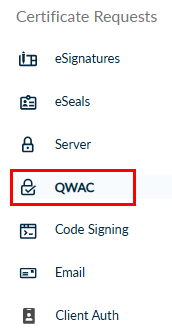
Once you log in, from the side bar, click QWAC.
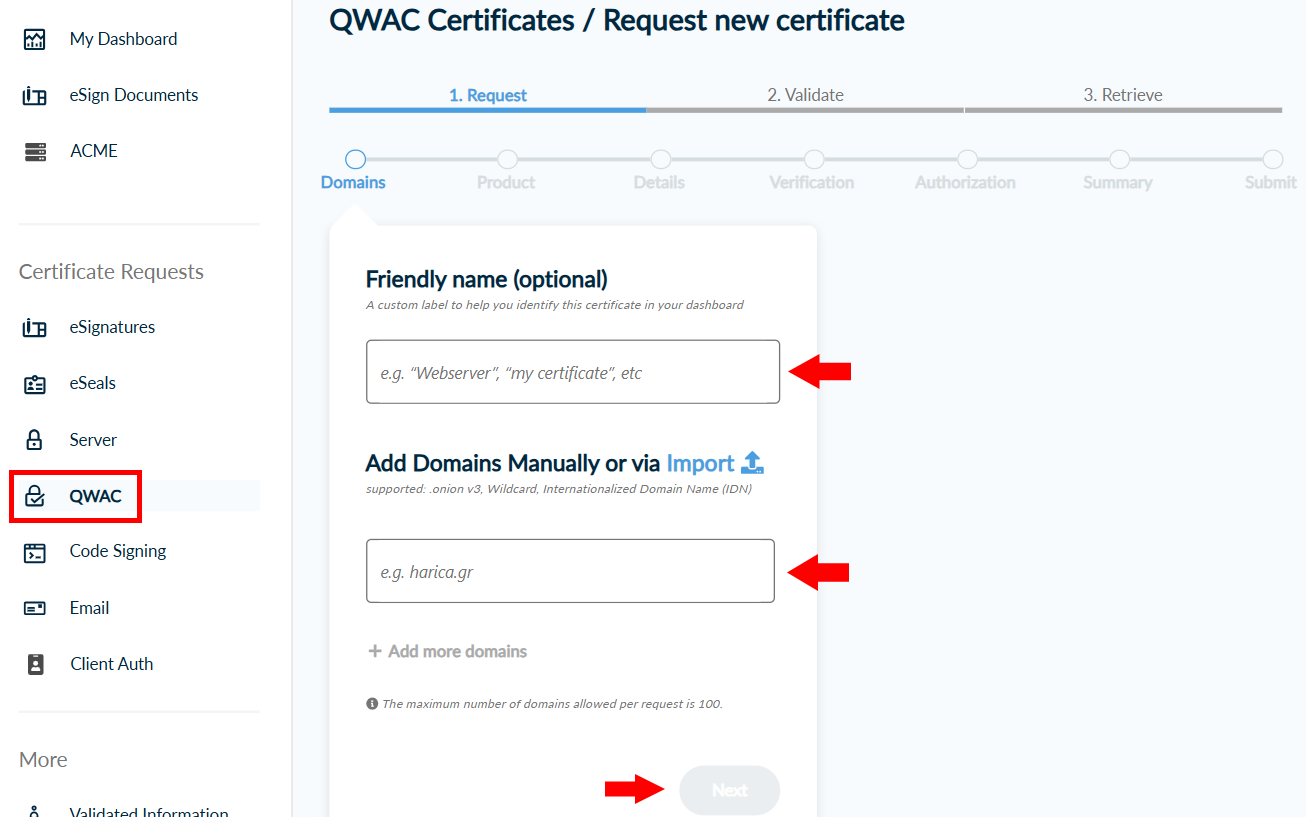
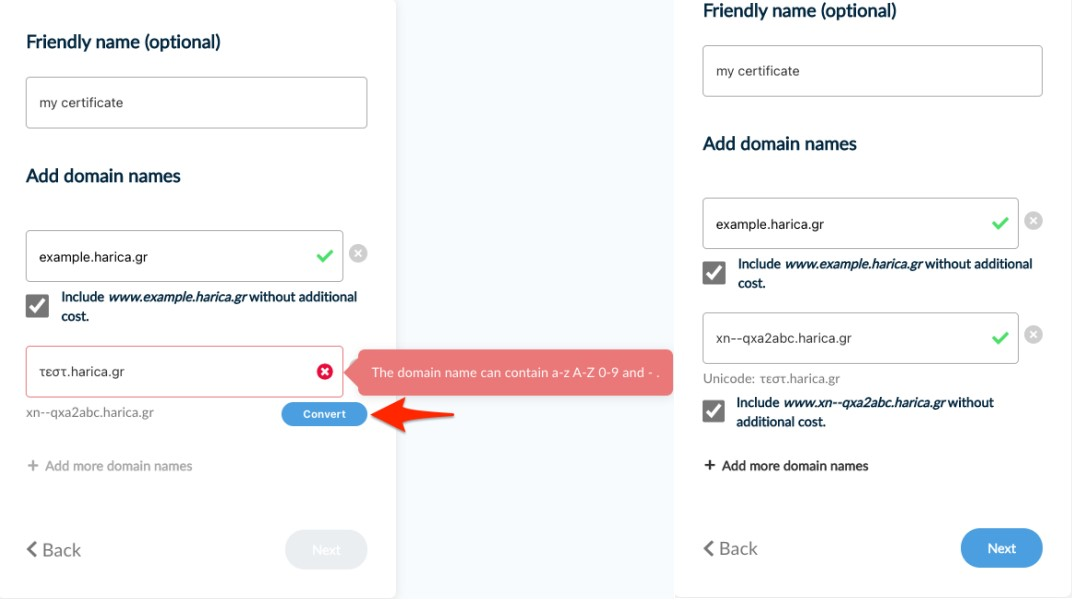
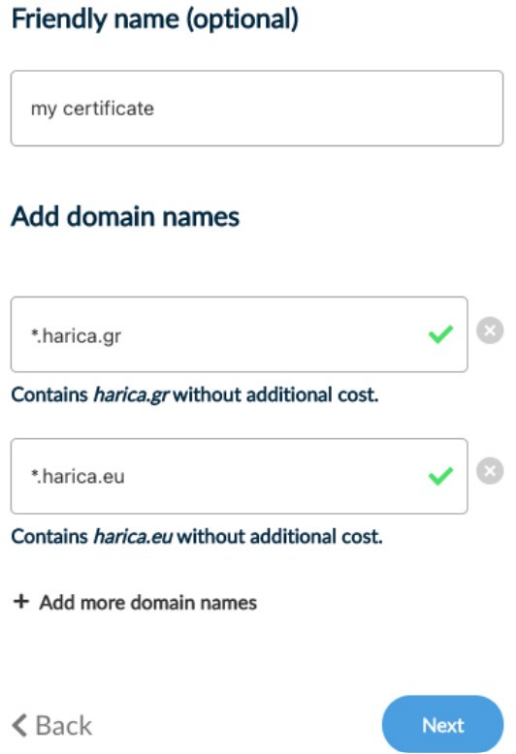
You can tag your request with a friendly name (optional) and add the requested domain name(s). Then, click Next.
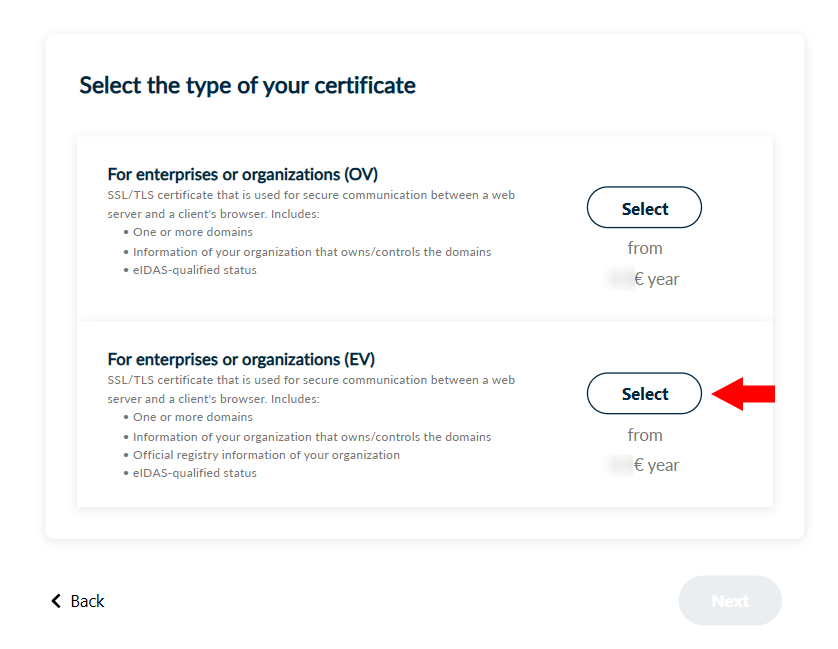
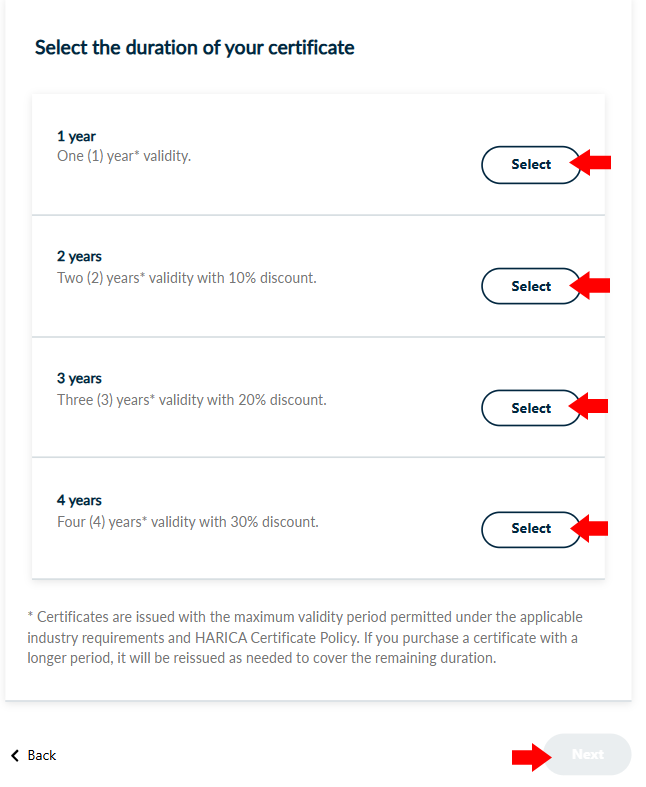
Select one of the following certificate types.
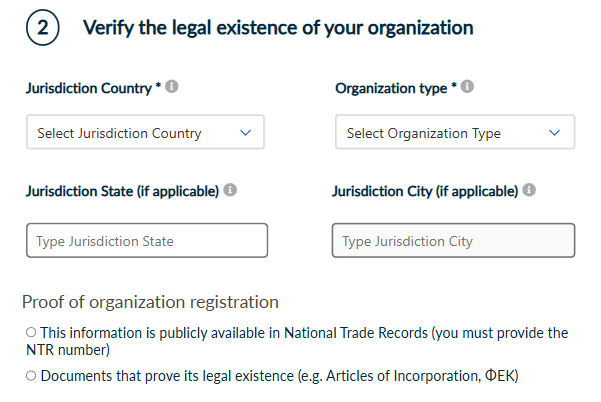
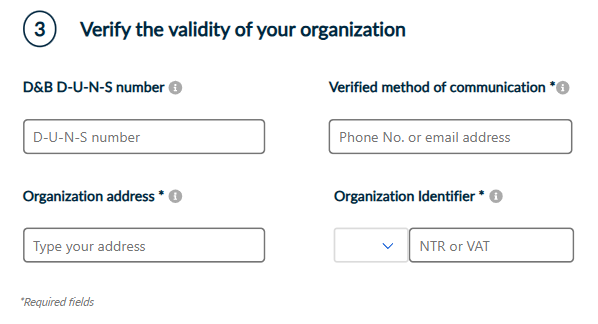
3. Fill in organization information
Fill in all the required information regarding your organization.
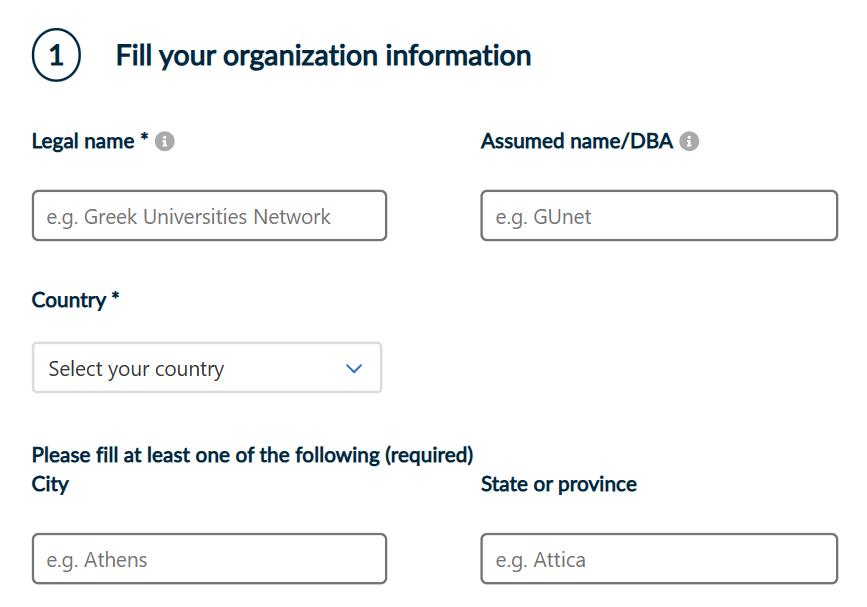
Verify the validity of your organization by filling in all the required information and either by uploading all the required documents that prove its legal and operational existence (such as Articles of Incorporation, ΦΕΚ) or by providing the National Trade Records (NTR) number if this information is available in public records.
4. Select identity validation method
Choose one of the following identification methods to confirm your personal details. Then, click Next.
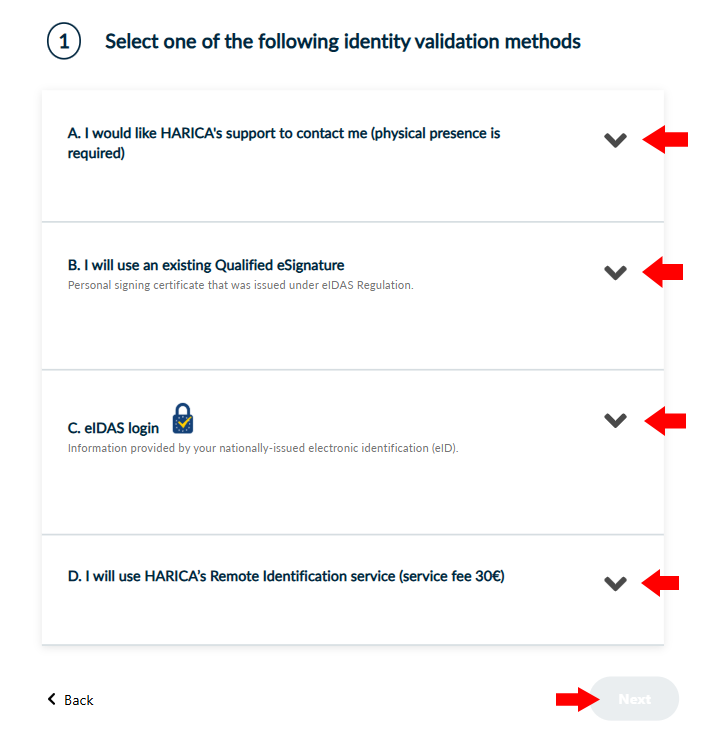
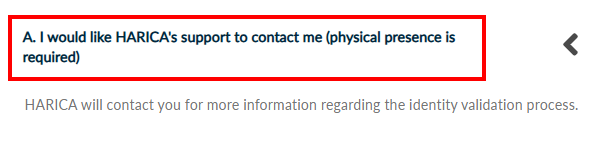
- In case you choose method A, your physical presence is required. HARICA’s validators will contact you for more information (e.g. arrange an appointment at HARICA’s Registration Office).
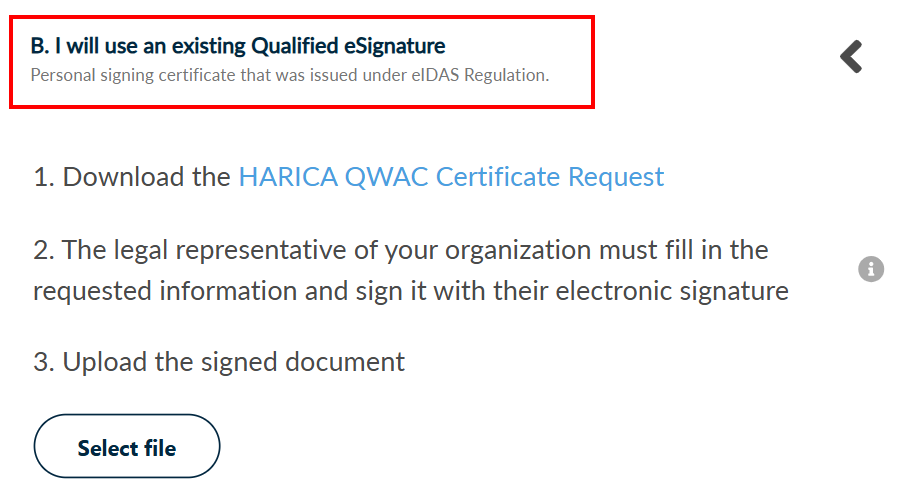
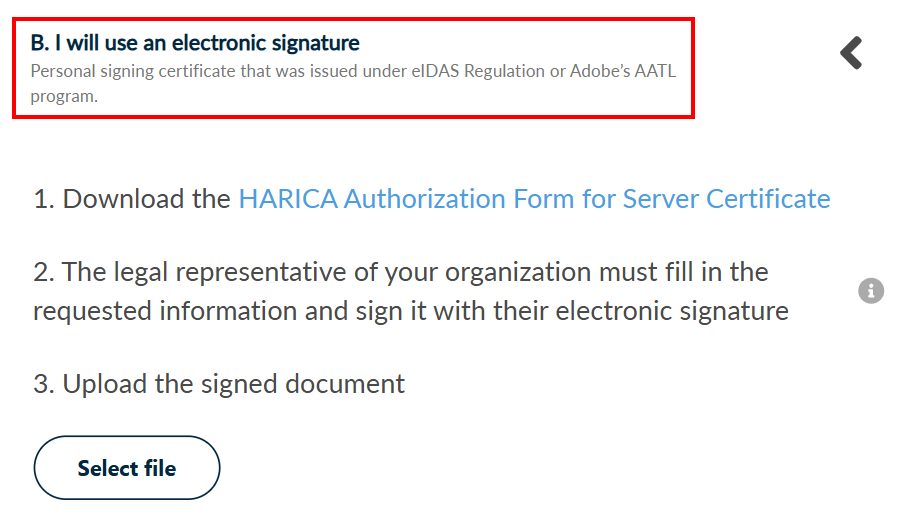
- In case you choose method B, the legal representative of your organization must fill in and digitally sign HARICA’s authorization form with a personal signing certificate.
- Choose eIDAS login if your National eID scheme is NOTIFIED and the Level of assurance is marked as High or Substantial as documented in this list

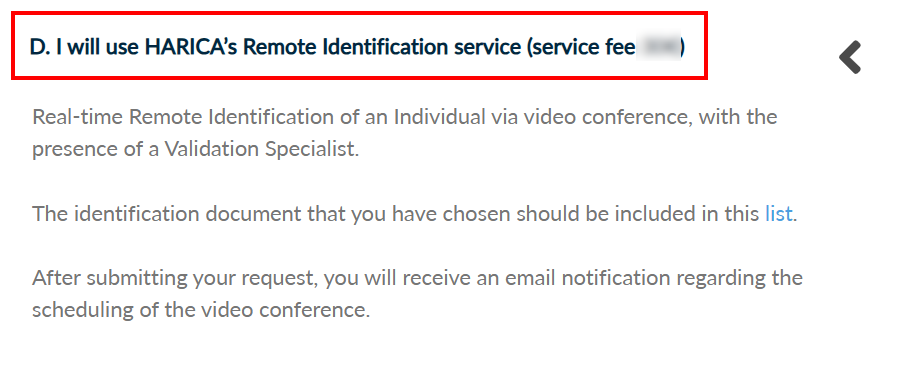
- In case you choose method D, you will use Real-time Remote Identification of an Individual via video conference, with the presence of a Validation Specialist.
5. Select authorization method
Choose one of the following authorization methods to confirm your certificate request. Then, click Next.
CAUTION! The uploaded documents should be in .pdf format.
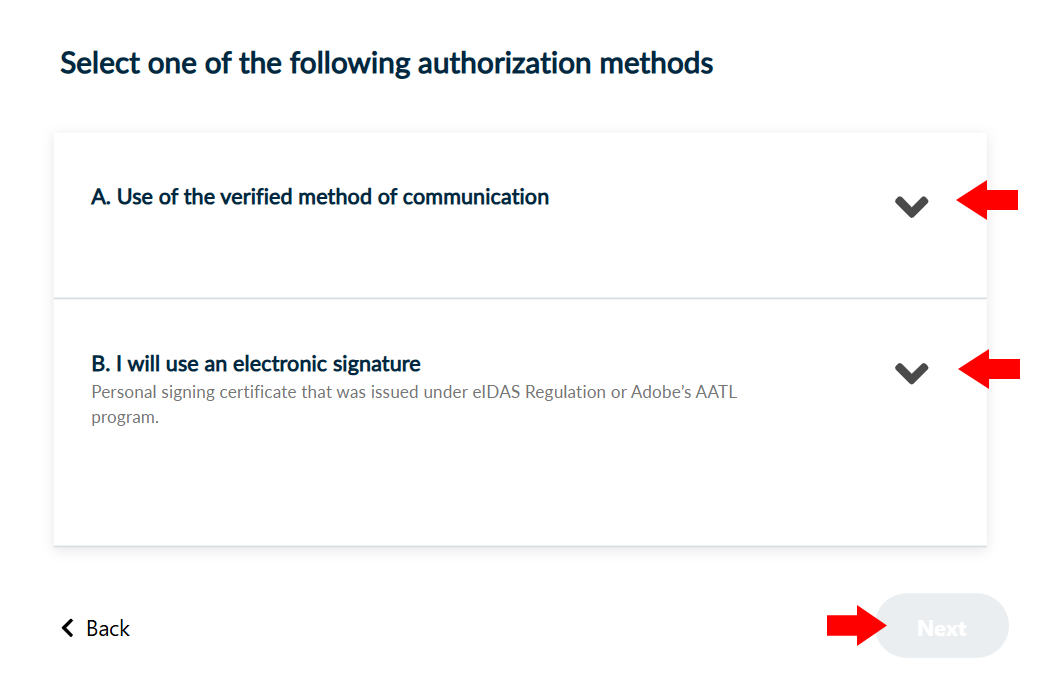
- In case you choose method A, HARICA’s validators will contact you to verify your certificate request in your verified method of communication that you set earlier.

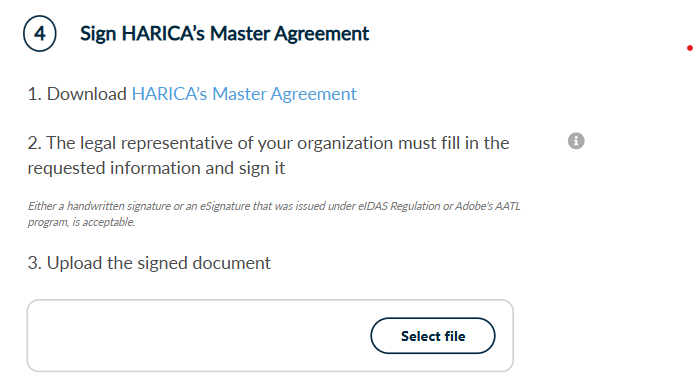
- In case you choose method B, the legal representative of your organization must fill in and digitally sign HARICA’s authorization form with a personal signing certificate.
6. Review and submit request
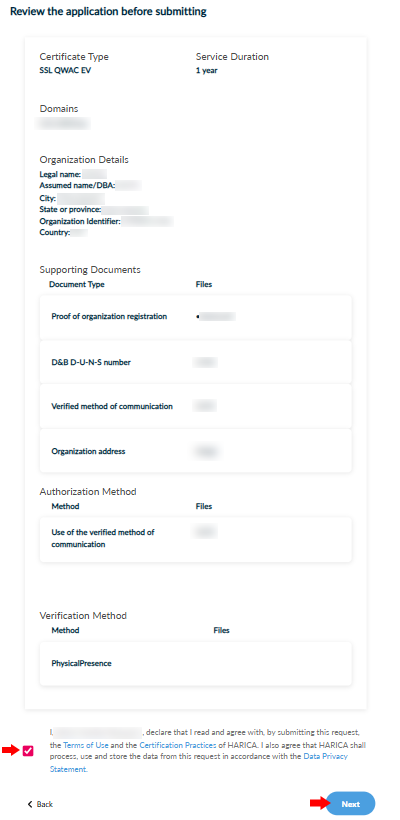
Check to make sure that all of the information is correct, accept the Terms of Use, the Certification Practices of HARICA and the Data Privacy Statement. Then, click Next.
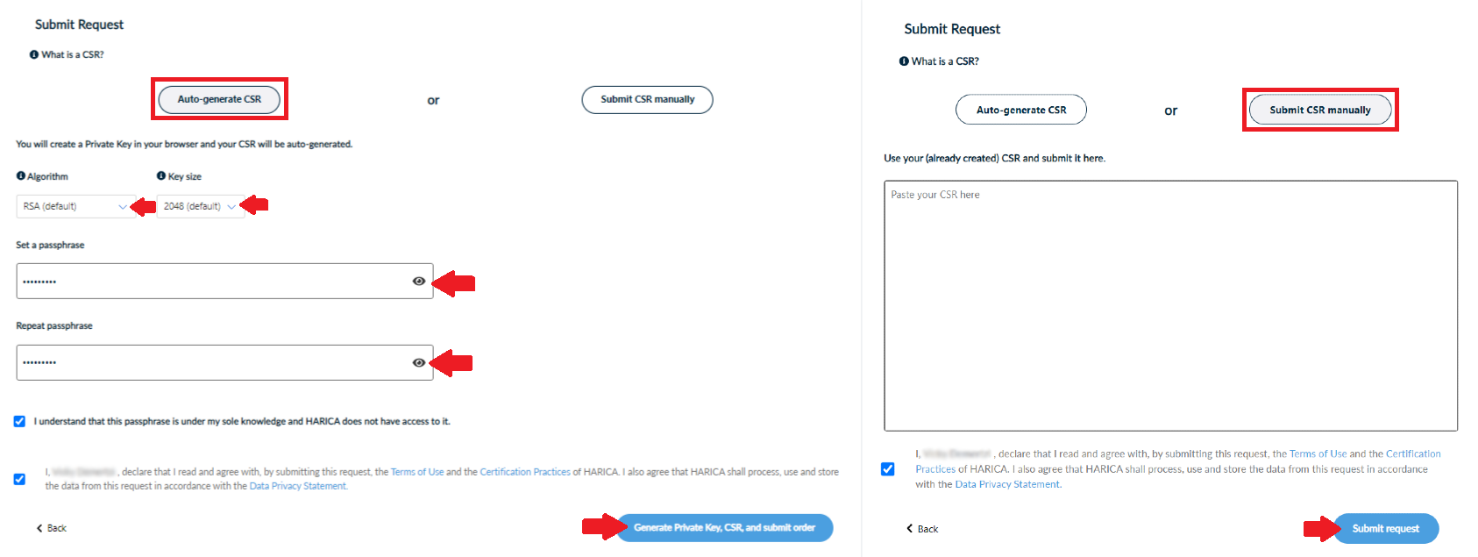
You have the option to generate your CSR in your browser using the auto-generation feature or submit one you have already prepared (e.g. using openssl).
The Auto-generate CSR option requires you to select the key type/size and set a passphrase that you must remember since it will protect the private key of your certificate. Click Generate Private Key, CSR, and submit order or Submit request, accordingly.
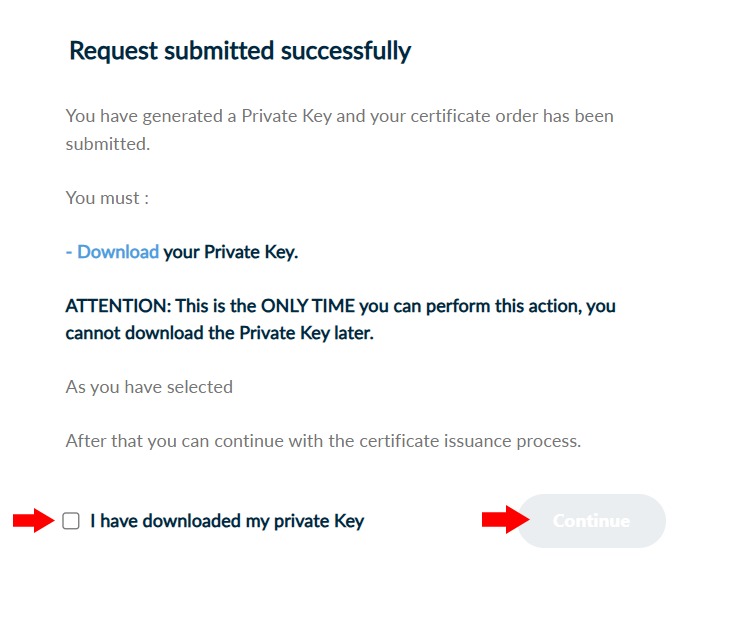
Download your protected private key and then click Continue.
7. Validate domain
Depending on the type of your requested certificate, you have the following options for the domain validation procedure.
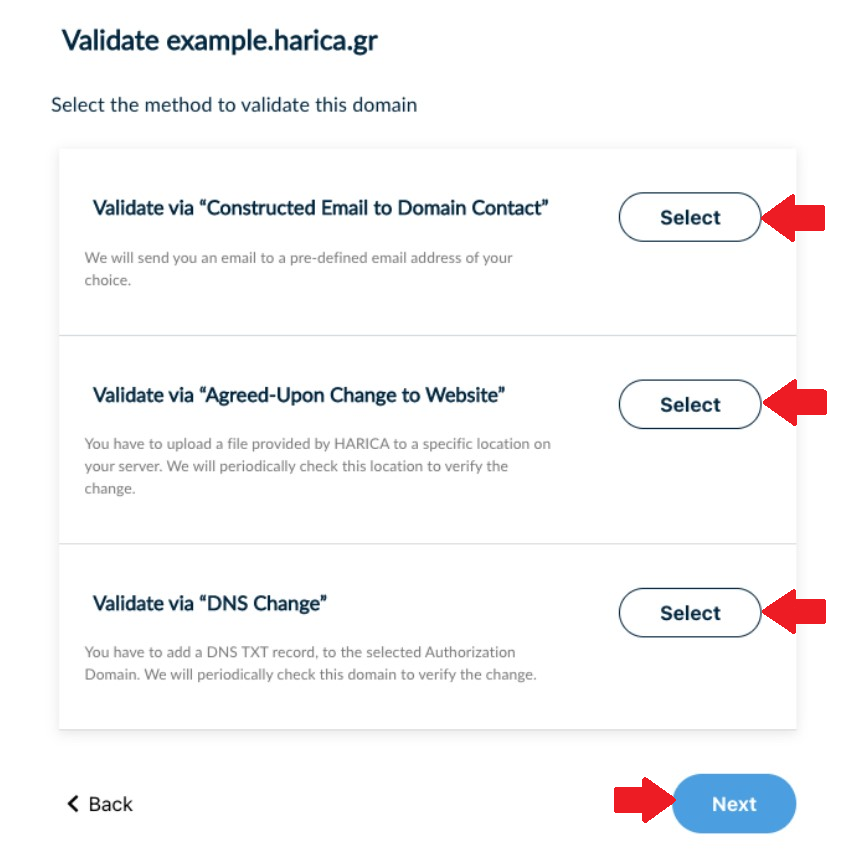
- Validate via “Constructed Email to Domain Contact”
Select a pre-defined email address of your domain to receive a confirmation email.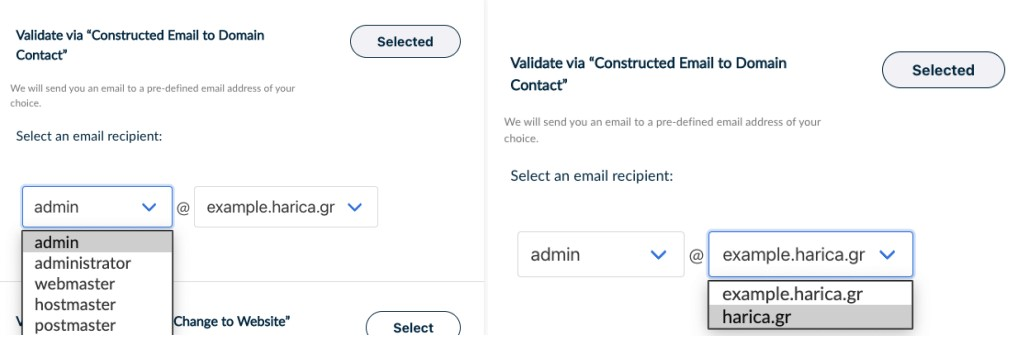
- Validate via “Agreed-Upon Change to Website”
Upload a file, provided by HARICA, to a specific location on your server.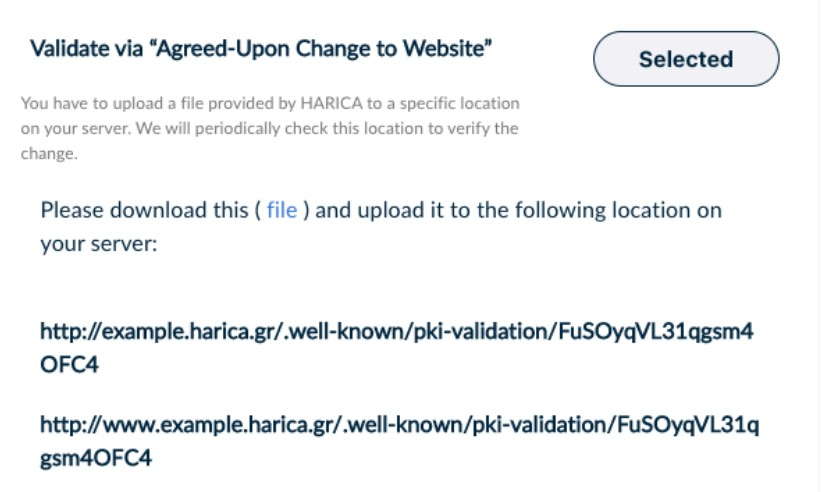
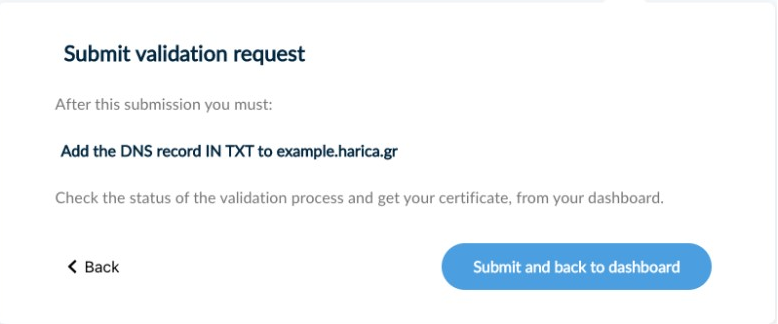
- Validate via “DNS Change”
Add a DNS TXT record to the selected authorization domain.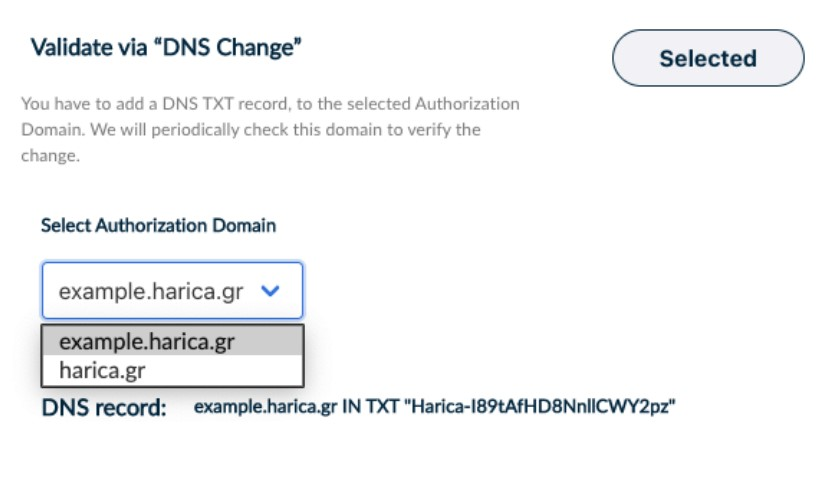
After selecting your preferred domain validation method, click Submit and back to dashboard.
8. Complete Transaction
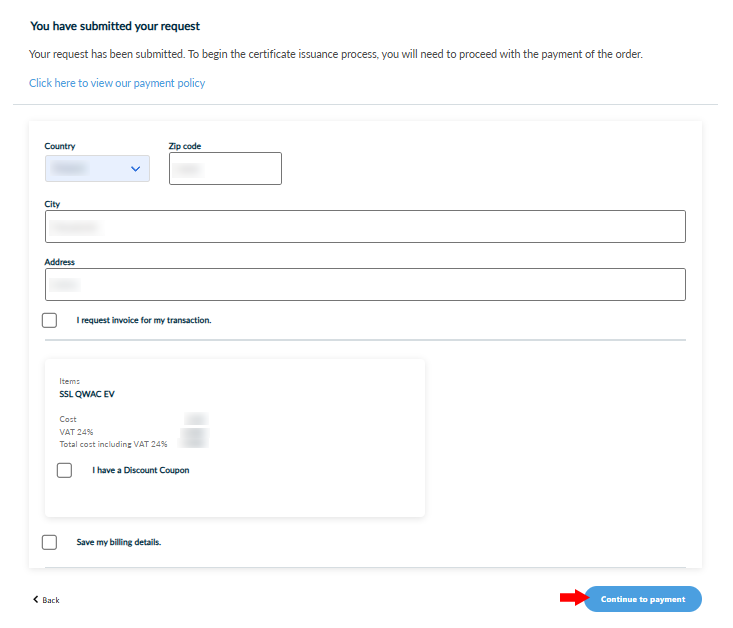
Once the request has been submitted successfully, the next step is to proceed to the payment of your QWAC. To do that, click Continue to Payment.

Fill in all the necessary information, click Continue to Payment and you will be redirected to our partner bank’s e-Commerce environment to complete the payment.
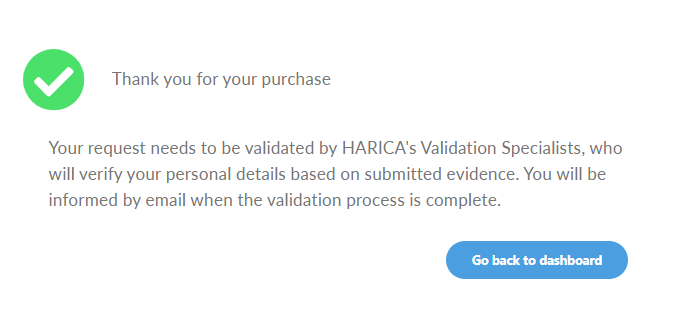
Once the payment is complete, you will be redirected back to HARICA’s CertManager confirming the purchase of your Certificate.
9. Wait for validation
The request is pending. You can proceed with the domain validation. Your request needs also to be approved by HARICA’s validators, who will check and verify the data that you have submitted.

10. Get certificate
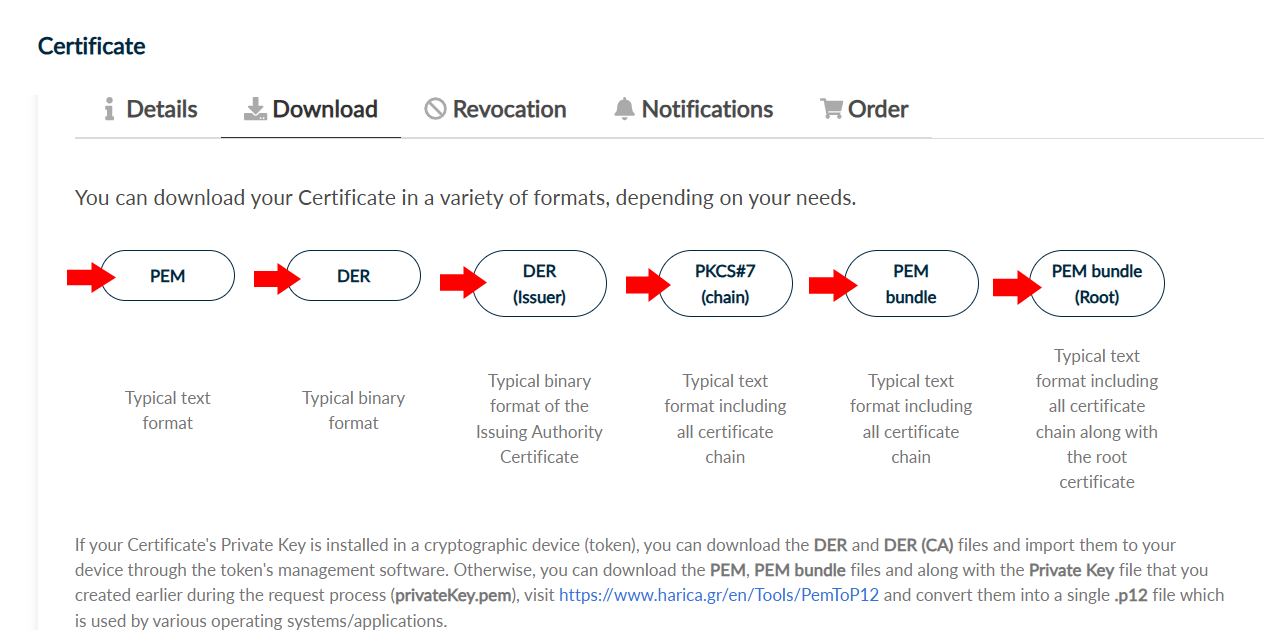
When the validation is completed, you can retrieve your certificate in different formats.